> ## Documentation Index
> Fetch the complete documentation index at: https://docs.picsy.uk/llms.txt
> Use this file to discover all available pages before exploring further.
# Configure a catchment
> Choose a catchment type and range, and keep separate catchments for different kinds of analysis.
A catchment is the area PICSy uses to calculate figures around a site. Change it without moving or recreating the site.
## Choose a type and range
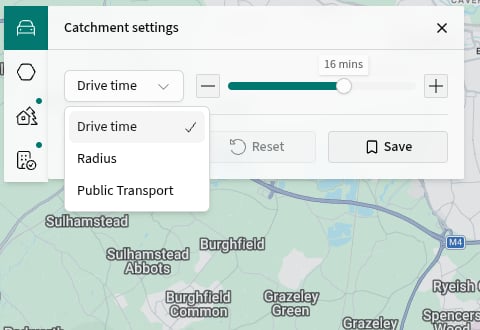
1. Open **Catchment settings**.
2. Select **Drive time**, **Radius** or **Public Transport**.
3. Use the minus and plus buttons, or drag the range control.
Drive time and public transport use minutes. Radius uses miles. The map and analysis update as you change the range.
| Catchment type | Use it when |
| -------------------- | -------------------------------------------------------- |
| **Drive time** | The area should reflect a journey by car. |
| **Radius** | You need a fixed straight-line distance from the site. |
| **Public Transport** | The area should reflect journeys using public transport. |
 ## Use a different staffing catchment
General and staffing analysis do not always need the same catchment. PICSy can keep them separate.
1. Choose a general analysis view such as **Demographics** and set its catchment.
2. Switch to **Staffing/Access**.
3. Open **Catchment settings** and set the staffing catchment.
4. Switch between the two views to check each boundary.
When separate catchments are available, changing the staffing catchment does not replace the general one.
## Save a useful variation
1. Open **Save** in **Catchment settings**.
2. Select **Save current**.
3. Enter a name, then select **Save**.
## Use a different staffing catchment
General and staffing analysis do not always need the same catchment. PICSy can keep them separate.
1. Choose a general analysis view such as **Demographics** and set its catchment.
2. Switch to **Staffing/Access**.
3. Open **Catchment settings** and set the staffing catchment.
4. Switch between the two views to check each boundary.
When separate catchments are available, changing the staffing catchment does not replace the general one.
## Save a useful variation
1. Open **Save** in **Catchment settings**.
2. Select **Save current**.
3. Enter a name, then select **Save**.
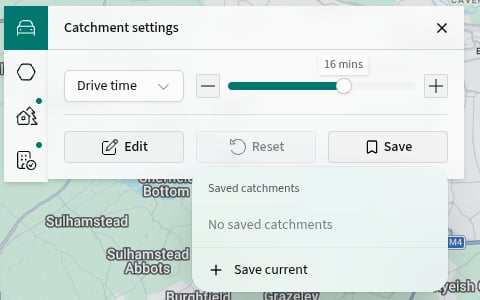 The saved catchment keeps its type, range and manual edits together. Select its name from **Save** to use it again.
If the boundary needs a small adjustment, [edit the catchment](/analysis/edit-a-catchment).
The saved catchment keeps its type, range and manual edits together. Select its name from **Save** to use it again.
If the boundary needs a small adjustment, [edit the catchment](/analysis/edit-a-catchment).