> ## Documentation Index
> Fetch the complete documentation index at: https://docs.picsy.uk/llms.txt
> Use this file to discover all available pages before exploring further.
# Export an analysis
> Create a printable report or download an Excel workbook.
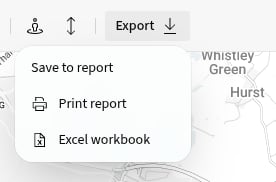
Open **Export** at the top of a site's analysis workspace. Use **Print report** for a PDF or **Excel workbook** for the underlying data.
 Before exporting, check the catchment, projection year, comparison and map. PICSy uses the current analysis settings when it builds the files.
## Download a PDF report
Select **Export**, then **Print report**.
Select an available **Print layout**, then review or change the **File name**.
Select **Print**. PICSy shows the report's progress and downloads the PDF when it is ready.
Keep the analysis page open until the download starts.
## Download an Excel workbook
1. Select **Export**.
2. Select **Excel workbook**.
3. Wait for PICSy to prepare and download the file.
PICSy saves the current analysis before building the workbook. It is organised into **Demographics**, **Region Demographics**, **Supply**, **Planning** and **Staffing** worksheets. If the current analysis does not provide data for a worksheet, the workbook marks it as unavailable.
Large workbooks can take a little longer to prepare. Keep the analysis page open until the download starts.
Next, learn how to [benchmark sites](/tools/benchmarking).
Before exporting, check the catchment, projection year, comparison and map. PICSy uses the current analysis settings when it builds the files.
## Download a PDF report
Select **Export**, then **Print report**.
Select an available **Print layout**, then review or change the **File name**.
Select **Print**. PICSy shows the report's progress and downloads the PDF when it is ready.
Keep the analysis page open until the download starts.
## Download an Excel workbook
1. Select **Export**.
2. Select **Excel workbook**.
3. Wait for PICSy to prepare and download the file.
PICSy saves the current analysis before building the workbook. It is organised into **Demographics**, **Region Demographics**, **Supply**, **Planning** and **Staffing** worksheets. If the current analysis does not provide data for a worksheet, the workbook marks it as unavailable.
Large workbooks can take a little longer to prepare. Keep the analysis page open until the download starts.
Next, learn how to [benchmark sites](/tools/benchmarking).