
Create a list
- Open Compare from the main navigation.
- Select New list.
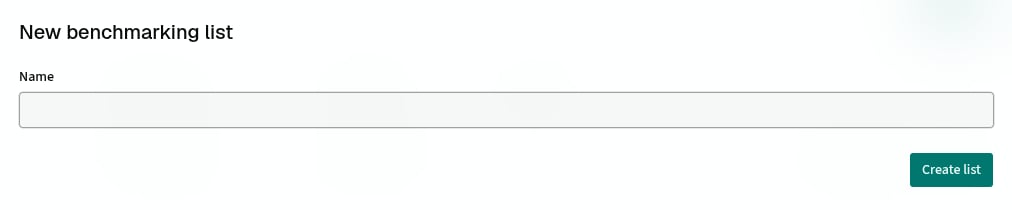
- Enter a name and select Create list.
Add locations
Use Add item to choose where each location comes from, then search for and select it. Depending on what is available, you can add:- A saved site
- An address or postcode
- A care home
- A planning record
Set the catchments
Open Catchment and choose how PICSy should calculate the area around each location:- Shared applies one catchment type and range to the whole list.
- Per item lets you set a different catchment for each location.
Choose the measures and comparison
Open Metric group to choose the measures shown in the list. You can then use Comparison to compare each location against:- The current list average
- A specific location in the list
- Another saved list average
- A saved group average
Review and export the list
The workspace has three result views:- List shows the values for each location and how they differ from your comparison.
- Charts visualises the differences across the list.
- Reports shows the latest reports for care homes in the list.